Upgrades And The Mac App Store

We have been receiving quite a bit of email on this subject lately, so I thought I would explain how to qualify for upgrade pricing if you have purchased from the Mac App Store. 

The Mac App Store does not allow developers to offer upgrade pricing. That leaves customers with two choices:

  • Purchase Nisus Writer at full price on the Mac App Store. 
  • Purchase directly through our store.

If you would like to purchase through us to receive the upgrade discount, you can follow the excellent instructions Martin provided in our FAQ (which answers many, many Nisus app related questions). Alternatively, you can email your Mac App Store receipt as proof of purchase.

Please know that while we make more money from direct purchases, feel free to buy from wherever you like. All of our customers are treated and appreciated in the same way. 

Extract Text from Images

Nisus Writer recently added a feature that allows you to extract editable text from your photos, scans, PDFs, and other images. This process is often called optical character recognition (aka OCR).

Let’s see how text extraction works using a COVID relief notice I recently received from the United States government:

Once the image is in Nisus Writer Pro document, select it and use the Extract Text From Image command to generate an editable text version of the image:

Most of the text is correct and in sequence. There are a few minor errors and text misplacements, like the number 6 appearing before the title– perhaps caused by the Treasury Department’s seal alongside the main textual content.

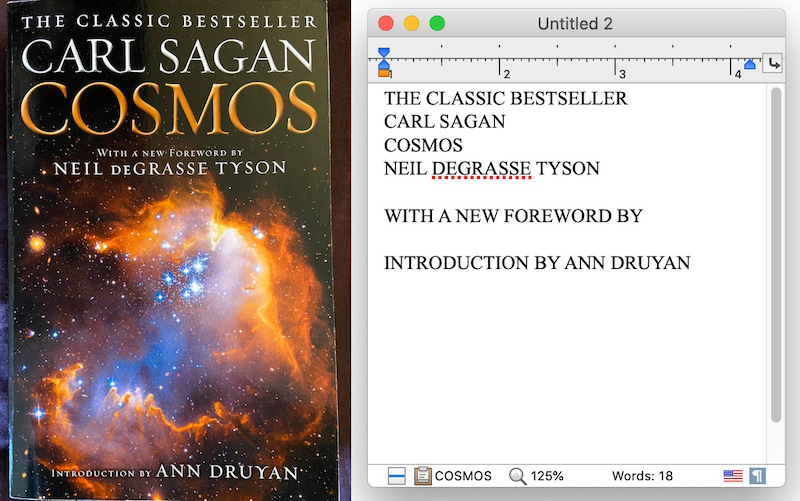
Let’s try a few others images, like this paperback book and store receipt:

Overall pretty good! Usually editing extracted text is a better starting point than retyping something entirely.

The accuracy of the extraction will depend on a variety of factors including the quality of the image, whether text is slanted or rotated, the language and words in the text, and your system version. Nisus Writer uses Apple’s machine learning capabilities to accomplish this task, and requires at least macOS 10.15 Catalina.

Hopefully you’ll find a good use for this new feature.

Jump Around Quickly While Writing

One of my favorite new features in Nisus Writer Pro 3 is the Go To Content command. Whenever I’m writing a reasonably complex document I often want to jump around it, to consult material from other sections or simply work on different parts of the text. Nisus Writer has a Navigator sidebar that can aid in this task, showing key document structure like the Table of Contents or Bookmarks. But I wanted a faster workflow.

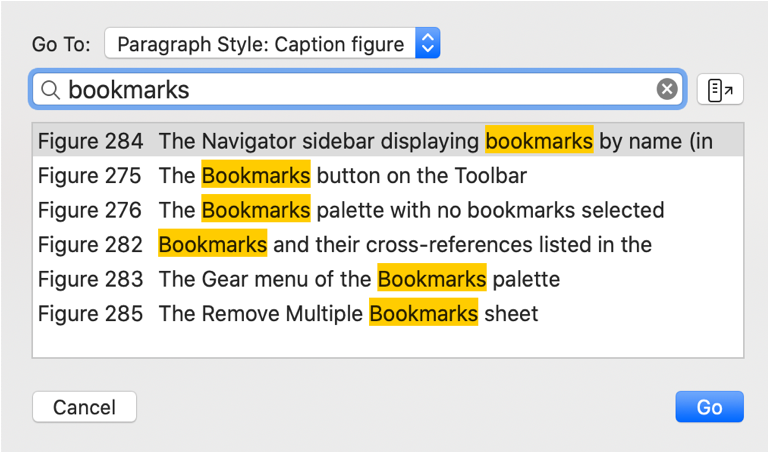
You can use the new Go To Content menu to see a list of available destinations, like all your Table of Contents headings. Or perhaps all text using a particular paragraph style:

This listing allows you to quickly filter by keyword or partial text, so you only have a few destinations to look through. This is a great way to find the desired heading (or other special content) and jump right to it.

Skip the Mouse
One thing I love about the new Go To Content command is that I can keep my hands on the keyboard the whole time. Using Nisus Writer’s multi-key shortcuts I’ve established a few shortcuts to trigger variants of the Go To Content command. For example: Command + GT for Go to Text in TOC, and Command + GB for Go to Bookmark.

Once a “Go To” dialog is open, it’s quick to finish the job via the keyboard:
1. Type a few keywords to narrow down the list of destinations.
2. Press the Down Arrow key to select the desired destination.
3. Press Return to jump to the destination text.

Okay, so maybe it doesn’t take that long to grab your mouse and click around, but it feels really great when you get something done using only the keyboard. You stay more focussed on your writing– in the flow. If you haven’t bothered to train your habits to reduce mouse usage, I suggest you give it a try. It can be a revelation!

Learn More
For more details on this new feature in Nisus Writer Pro, please see the Go To Content section of our user guide. It goes over some other details and tricks, like using the Go To Content dialog to produce a list of specialized search results.