Nisus Writer and Custom Keyboard Layouts

A topic that recently arose on the Nisus user forums is whether or not Nisus Writer comes with any custom keyboard layouts. While we don’t provide any keyboard layouts, Nisus Writer does support all layouts that are available system-wide on macOS. That includes all the default layouts provided by Apple as well as any customized keyboard layouts.

To enable additional keyboard layouts (also called input sources) on your Mac you can visit the macOS system Keyboard preferences. You’ll see a host of keyboards available:
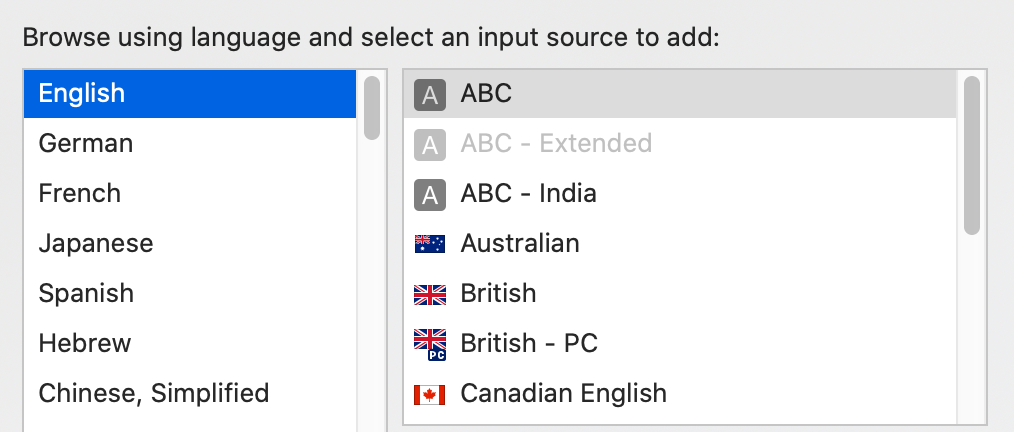
Once you’ve enabled a keyboard layout for your Mac you can use it all your apps. In addition Nisus Writer has special language features that can help you automatically switch the keyboard layout based on the language of your document text.

You can also create your own keyboards using tools like Ukelele or search for existing pre-made custom keyboards. For example, here’s a custom Yiddish keyboard layout for the Mac.

The sky is the limit when it comes to customizing text entry.
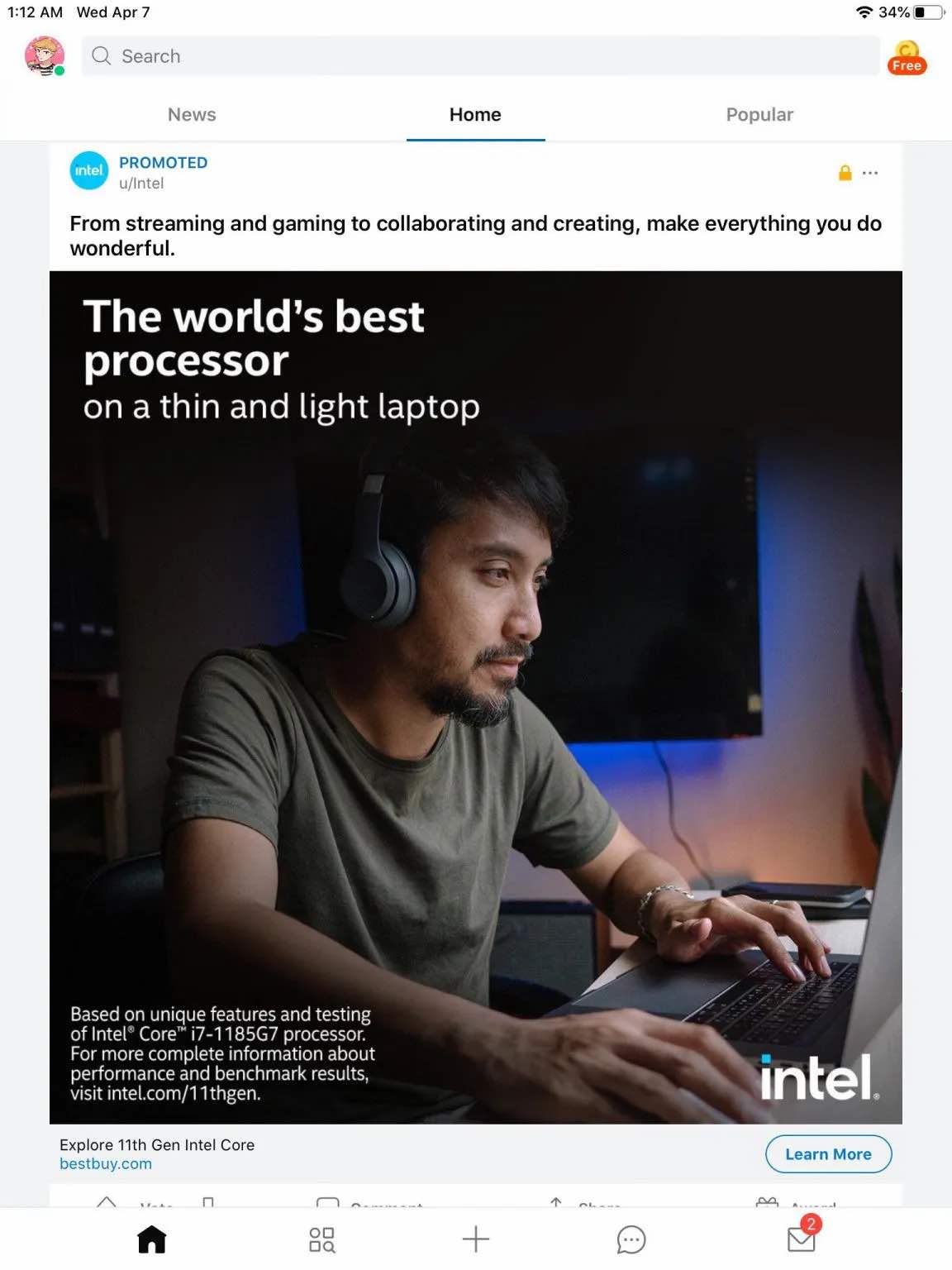
New Intel Ad Features A Mac That Doesn’t Exist

Intel is having quite a marketing run of late. This latest ad (courtesy of 9to5Mac) is just about the worst of the lot:

If I had to guess I would say someone in marketing at Intel is not paying attention. No Mac as of this writing is using Intel’s 11th generation processors. The “gamer” in the photo is wearing Beats headphones. He appears to be wearing a watch, and it wouldn’t shock me to learn it is an Apple Watch. It’s just sloppy. Intel is a multi-billion dollar company. I’m pretty sure they have good people in their marketing department. How did this get through?

M1 Mac mini Review

After much thought and a generous sale price I purchased a new M1 Mac mini. It’s the step up version (8GB of RAM and 512GB of storage). I’ve used it for a couple of weeks now and I’m enjoying it.

Without getting too deep in the weeds, here are the pros and cons:

Pros:

  • Compatible with every app I use (your mileage may vary).
  • Hardware works as expected. 
  • Runs cool no matter what I’m doing. 

Cons:

  • I can no longer use my mini as a space heater. 
  • Can only use two monitors (that’s not really a con for me). 
  • Bluetooth issues at times. 

Needless to say I am delighted. The Developer Transition Kits (DTK) were not known to be bastions of reliability as they were barely alpha quality hardware. The M1 mini is a different story. It has been, apart from a few bluetooth issues, very reliable, from set up to everyday usage.

My Intel mini can get very warm at times running tasks you wouldn’t think would tax the machine. For example, at set up Spotlight starts indexing the hard drive. When I did this on the Intel mini it got very warm and the fans kicked in quickly. The M1 mini didn’t even get warm during this process, and finished the task much quicker than the Intel mini. I was astonished to see how easily the computer handled this task.

If I had to pick one thing that excites me the most it is Rosetta 2. All of the software I used on the Intel mini I brought over to the M1 mini using Migration Assistant worked without issues. I would say that the most impressive feature on these new breed of Macs is Rosetta 2. 

The downside for me is the bluetooth is flakey at times. The keyboard and mouse lose connection for a bit, and it comes back just as quickly. It’s better now that Apple has addressed it, but it’s something to watch. 

Overall, I’d give 5 thumbs up to this new M1 mini.

Have you made the leap to the new Apple Silicon? Let me know in the comments. I’d love to hear from you. 

Multi-Key Keyboard Shortcuts

I’m a big fan of learning keyboard shortcuts. It’s nice to save time and avoid reaching for the mouse. Apple provides some basic macOS system preferences to customize keyboard shortcuts across apps, but Nisus Writer’s enhancements go much further.

Nisus Writer of course lets you customize the keyboard shortcut for any menu command. But an even bigger help are our multi-key shortcuts. You can choose whatever mnemonic is clearest to you. For example Command + H1 can apply the “Heading 1” paragraph style. To activate this shortcut:

1. Press and hold down the Command key.
2. Type the H key (press down and release up).
3. Type the 1 key (press down and release up).
4. Release the Command key (so it is now up).

Nisus Writer collects together all the pressed keys while the Command key is down and then matches the full shortcut at the very end, once the Command key is released.

Aside from activating any single regular menu command, you can also assign keyboard shortcuts to intermediate submenus. For example you might assign Command + OR to show the “Open Recent” menu. Once the menu is expanded on screen you can use the up/down arrows (or autocomplete typing) to select the desired submenu and open the corresponding file.

All these little tricks may take some small time to learn and set up, but once you do we hope you’ll see how much of a pleasure writing can be with Nisus Writer.

Big Sur is Dominant

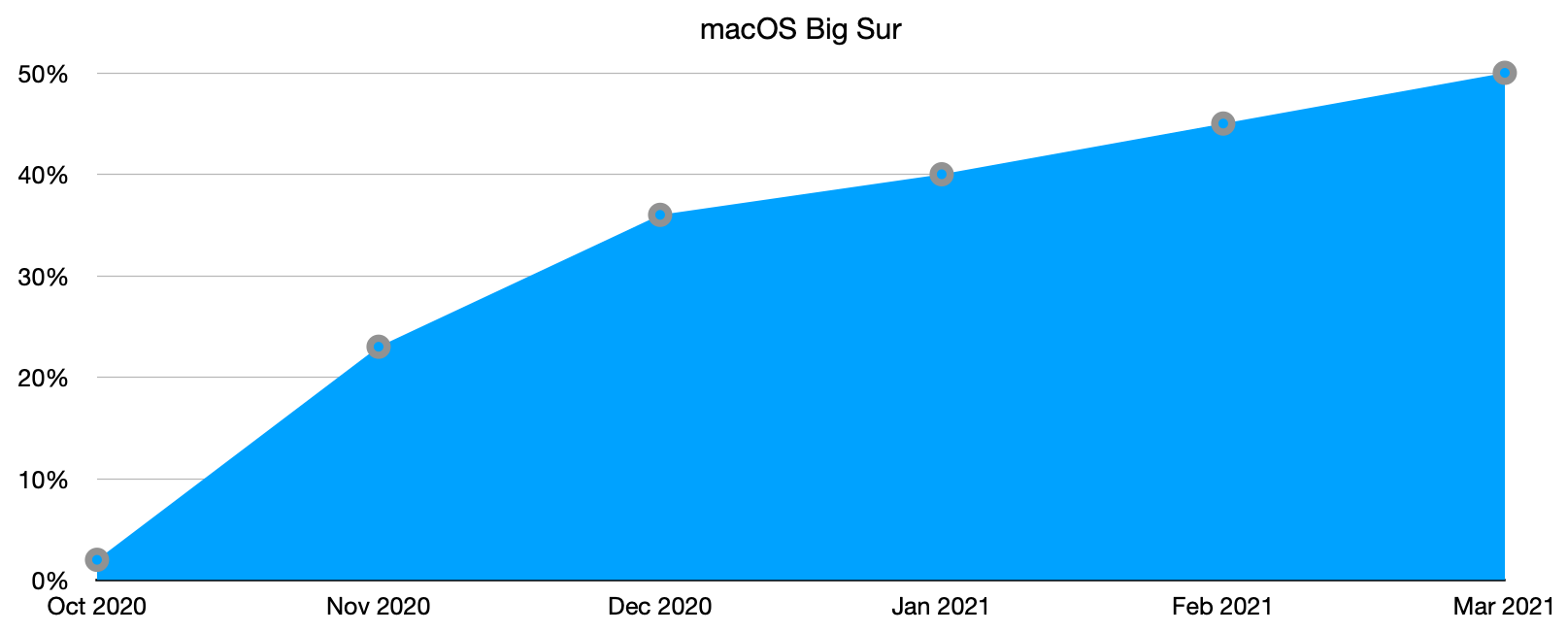
For the first time since its official release in early November 2020, macOS Big Sur’s usage has finally achieved a majority.

The chart above shows Big Sur’s usage rate amongst all users of Nisus Writer Pro (for those that opt-in to sharing anonymous system metrics). You can see that Big Sur’s usage for March 2021 has finally reached 50% of all our users.

Should you update to Big Sur if you haven’t already? There are many considerations, but by most accounts Big Sur is one of the better recent Mac system updates. Especially when compared to Catalina, which was notoriously unstable and obsoleted a lot of software. If you’re still worried about making the jump you might read this Big Sur rundown from our friends at TidBITS.